Product A - English
User Manual
Wireless CarPlay / Android Auto Adapter guide based on the English manual: product specifications, compatibility, connection, LED status, update, and troubleshooting.
Specifications and compatibility
Product specifications
- Power Supply: DC 5V +/- 0.5 1A.
- Product Name: Wireless CarPlay/Android Auto Adapter.
Compatibility note
- Please make sure your car supports wired Carplay/Android Auto.
- iOS: iPhone 6 or later iPhone models with iOS 10 or above are required for wireless Carplay function.
- Android: an Android phone that supports the latest Android Auto and Android 11 or higher is required for wireless Android Auto function.
Confirm wired CarPlay / Android Auto
Method 1
Connect your iPhone or Android smartphone to your car by USB and see whether the Carplay or Android Auto logo appears on your car display.
Method 2
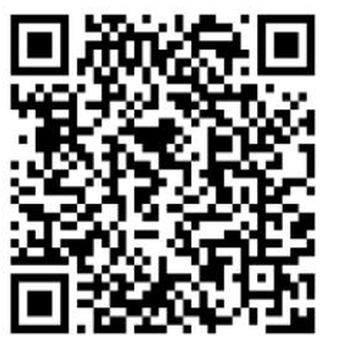
Check the compatible list below, or check with your car manufacturer to see if your car has this capability.

How to use
-
1
Start the car
Start the car and wait for the car system to be loaded.
-
2
Connect the adapter
Connect the Wireless Carplay/Android Auto adapter to the USB-A or USB-C port in your car. Please be sure to plug the adapter into the port that is for wired Carplay/Android Auto. The adapter light is on.
-
3
Turn on WiFi and Bluetooth
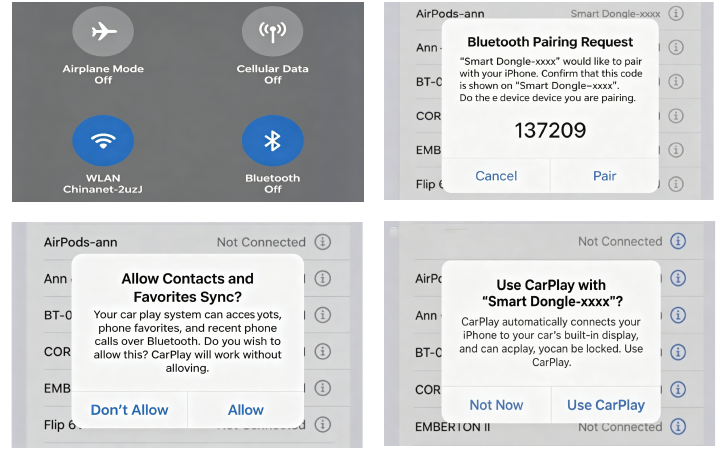
Turn on WiFi and Bluetooth on your iPhone/Android phone and find the Bluetooth named Smart Dongle-xxxx. Click PAIR, click Allow, then click Use Carplay / Use Android Auto.
-
4
Enjoy wireless Carplay / Android Auto
You are ready to enjoy wireless Carplay/Android Auto.
LED light description
- Light Green status: power on indicator.
- Carplay connected: green light.
- Android Auto connected: blue light.
- Blue light flashes but Carplay does not show: an Android phone has been connected before or is being connected. Disconnect the Bluetooth connection of the Android phone, then use the iPhone to connect.
Important notes
Working principle
The working principle is to use Bluetooth to establish a pairing between the iPhone/Android smartphone and the vehicle, and then switch to using WiFi to maintain wireless connection. Keep your phone's Bluetooth and WiFi turned on when using the converter.
Important tips
If your car is Android Auto, after inserting the adapter, there will be no display on the screen. This is normal and not a malfunction. Use your phone to turn on WiFi and Bluetooth, search for the adapter's Bluetooth WirelessDongle-xxxx, and connect.
Switch between Carplay and Android Auto
Wireless Carplay to wireless Android Auto
Turn off both Bluetooth and WiFi for iPhone, and wireless Carplay will disconnect. Then turn on the WiFi and Bluetooth of the Android phone, use Bluetooth to search and link the Smart Dongle-xxxx Bluetooth signal, and the WiFi will automatically connect.
Wireless Android Auto to wireless Carplay
Turn off both Bluetooth and WiFi for Android phones, and the wireless Android Auto will disconnect. Then turn on the WiFi and Bluetooth on your iPhone, use Bluetooth to search and link to the Smart Dongle-xxxx Bluetooth signal, and the WiFi will automatically connect.
Please note
- Please confirm to turn off WiFi before connecting to another phone, otherwise the device may connect to both phones' WiFi and affect normal operation.
- Before connecting a new device to the adapter, first disconnect the previously connected device so the new device can search for Bluetooth.
- After the device is successfully connected, the Bluetooth interface of the mobile phone may show that it is not connected. The adapter Bluetooth is hidden to prevent other mobile phones from connecting, but the original connection will not be disconnected.
- Please make sure your car model supports wired Carplay/Android Auto and the wireless adapter power indicator light is on.
Package list
Wireless adapter
1x Wireless Adapter CarPlay/Android Auto.
USB
1x USB. Some styles do not come with adapter cables.
User manual
1x User Manual.
Q&A
1. What is the WiFi password for the Carplay Wireless Adapter?
Connect Bluetooth, not WiFi. After Bluetooth matching is successful, WiFi will automatically connect, so no WiFi password is needed. Make sure your WiFi is turned on and unoccupied when pairing.
2. After pairing Android Auto adapter, Android Auto cannot start or USB cannot be recognized
- No display on the screen for Android Auto is normal and not a malfunction. Use your phone to turn on WiFi and Bluetooth, search for the adapter's Bluetooth WirelessDongle-xxxx, and connect.
- If your car uses Android Auto for the first time, use your data cable to connect your phone and activate Android Auto through a wired method.
- If you have connected to an iPhone before, disconnect the iPhone's Bluetooth connection first, restart the Android phone's Bluetooth, then connect Android Auto wirelessly.
- Make sure Android Auto on your Android phone is the latest version. If not, log in to your Google Play account to update it.
3. Audio input or output issues
- If the iPhone/Android smartphone's Bluetooth connects to other devices such as earphones or a watch, disconnect those auto-connected Bluetooth devices or turn off Bluetooth directly and reconnect to your vehicle Bluetooth for Carplay/Android Auto.
- When on a call, check that your audio output option is Carplay/Android Auto.
4. The indicator light is still on after the car is turned off
The car does not cut off all power immediately when turned off, so the adapter light will not go out immediately and may take a while. Its power consumption is minimal and will not drain the car battery.
5. Can the phone use other internet WiFi while using the adapter?
When enjoying the wireless Android Auto adapter function, the phone's WiFi will be occupied by the adapter. You cannot use other internet WiFi at the same time; use the phone SIM card internet.
6. Unable to automatically reconnect
- Make sure Bluetooth and WiFi functions are turned on and Bluetooth is not occupied when you get in the car.
- Clear the pairing record, restart the phone, and repair the adapter.
7. Can the adapter be paired with multiple phones?
The adapter can be paired with a maximum of five phones, but only one device can be connected at a time. To pair with a new phone, cancel the current connection first. By Bluetooth default, the adapter system will only auto-connect back to the last used phone.
8. Cannot find the Bluetooth and WiFi of the wireless Carplay/Android Auto Adapter
- Make sure the Carplay/Android Auto adapter power indicator light is on and the adapter is plugged into the port for wired Carplay/Android Auto.
- If convenient, test it with another phone. If only a specific phone cannot find the adapter Bluetooth or WiFi, reset that phone's network and Bluetooth settings and restart the phone. If the same problem happens on other phones, the adapter may be defective.
Online update
Before updating
- If the adapter works properly, the current version is suitable for your car. It is not recommended to update the firmware.
- Only try this solution when the problem cannot be solved from the Q&A.
Steps
- Power up the adapter.
- Enable mobile phone network, 4G/5G.
- Connect the adapter via Bluetooth.
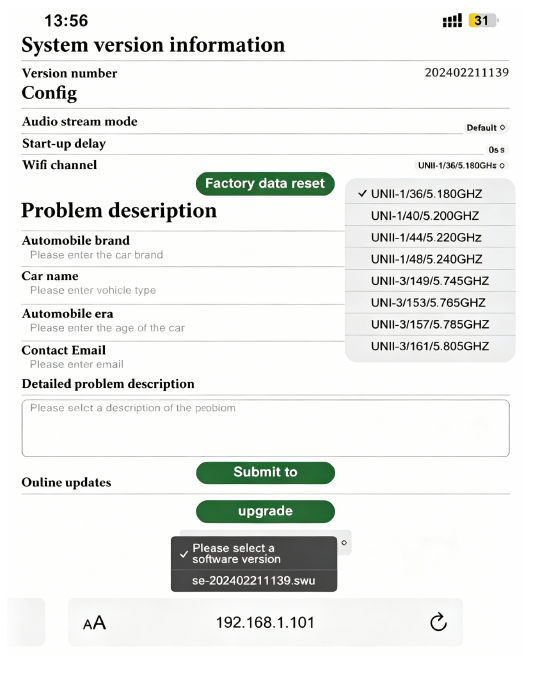
- Open the browser and enter 192.168.1.101 to enter the Carplay function settings page.
Quick troubleshooting
Unable to display
- If the mobile phone is connected to the adapter, the car cannot access Carplay.
- Connect the adapter's WiFi Smart Dongle-xxxx. The password is 12345678.
- Fill in the car brand, model, year, and more details, then tap Submit to report the issue. Engineers will record the problem and research possible solutions.
About unstable connection
If you encounter unstable connection problems, it may be due to different WiFi/hotspot channels. Go to 192.168.1.101, select WiFi channel, and find the right channel to make the connection more stable.
Apple Carplay
Click Online Update and select the version with the latest date for updating.
Android Auto
- Click Switch P2P, then click OK.
- Return to WiFi Connect, find the Wi-Fi Direct option, then connect the available device SmartDongle-****.
- Return to the browser page and click Update. The signal light will flash when it reaches 70%, and it will return to normal after success.